Installation of NVIDIA Drivers in RHEL/CentOS and Fedora
Installation of NVIDIA Drivers in RHEL/CentOS and Fedora
First, install needed “Development” packages using YUM command as shown.
# yum groupinstall "Development Tools"
# yum install kernel-devel kernel-headers dkms
Before installing NVIDIA drivers, you need to know your driver product type by using following command.
# lspci -nn | grep VGA
Sample Output
01:00.0 VGA compatible controller [0300]: NVIDIA Corporation GF108GL [Quadro 600] [10de:0df8] (rev a1)
Once you know your driver name, then go to NVIDIA official website and download required drivers for your system. Download drivers using following link.
Disable Nouveau Driver
open “/etc/modprobe.d/blacklist.conf” in your favourite editor and add “blacklist nouveau”, ofcourse without double-quotes.
blacklist nouveau
Next create a new “initramfs” file and taking backup of existing.
# mv /boot/initramfs-$(uname -r).img /boot/initramfs-$(uname -r).img.bak
# dracut -v /boot/initramfs-$(uname -r).img $(uname -r)
Reboot the machine. Login into command mode using Alt+F4 / ALT+F5 as root.
# reboot
Once you in command line mode, next go to the folder where you’ve downloaded NVIDIA driver and run the script as show. If any dependency, you need to Yum the required packages.
./NVIDIA-Linux*.run
Once installation is complete, generate xorg.conf file using following command.
# X -configure
Copy xorg.conf.new as /etc/X11/xorg.conf.
# cp /root/xorg.conf.new /etc/X11/xorg.conf
Now switch to X Window as root user by typing.
# init 5
Launch NVIDIA configuration window and set the Resolution, manually, and at last click on ‘Save to X Configuration File‘ and quit. For reference, follow the screen shot added below.
Installation of NVIDIA Drivers Debian/Ubuntu/Linux Mint
First, check the information about your supported Graphics Card by issuing following command.
# lspci -nn | grep VGA
Sample Output
01:00.0 VGA compatible controller [0300]: NVIDIA Corporation GF108GL [Quadro 600] [10de:0df8] (rev a1)
Next add a repository under “/etc/apt/sources.list” file at the bottom. Save and close it.
deb http://ftp.debian.org/debian/ wheezy main contrib non-free
Disable Nouveau Driver
Open “/etc/modprobe.d/blacklist.conf” file and add the following line. Save and close the file.
blacklist nouveau
Next, do a system update and then install NVIDIA drivers and required Kernel packages using “apt-get” command.
# apt-get update
# apt-get install nvidia-kernel-dkms nvidia-glx nvidia-xconfig nvidia-settings
# apt-get install nvidia-vdpau-driver vdpau-va-driver
Stop the X service (gdm3).
# service gdm3 stop
Generate new xorg.conf file using following command.
# X -configure
Copy xorg.conf.new as /etc/X11/xorg.conf.
# cp /root/xorg.conf.new /etc/X11/xorg.conf
Now switch to X Window as root user by typing.
# startx
Open NVIDIA configuration wizard and set the Resolution, manually, and at last click on ‘Save to X Configuration File‘ and quit.
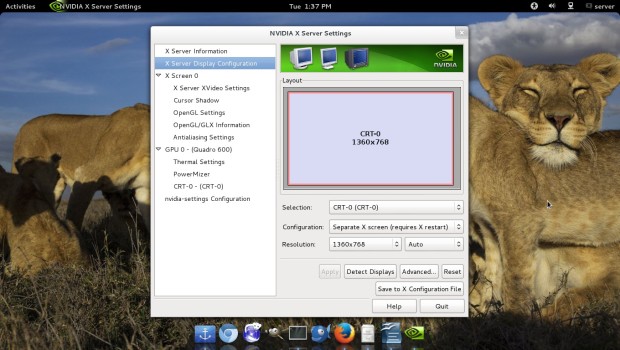
Congrats! Your installation and configuration of NVIDIA Graphics Driver is complete.
That’s all for now, If you gets stuck at a place during installation and could not fix it yourself, you can always ask for guidance in comment section. Do a favor for us by sharing the article.
Επιστροφή...